Connect Your LLM
Connect your chatbot to HAIPA over MCP so you can describe trades in plain English. Whichever assistant you use, it only ever proposes trades — HAIPA checks every one against your policy before it's signed, and never takes custody of your funds.
Connect Claude (MCP)
Purpose: Connect Claude to HAIPA over MCP so you can describe trades in plain English and have Claude execute them within your policy.
Steps
- Copy your HAIPA MCP URL from the Agent Rails dashboard (see Generate a HAIPA Agent key if you haven't created one yet).
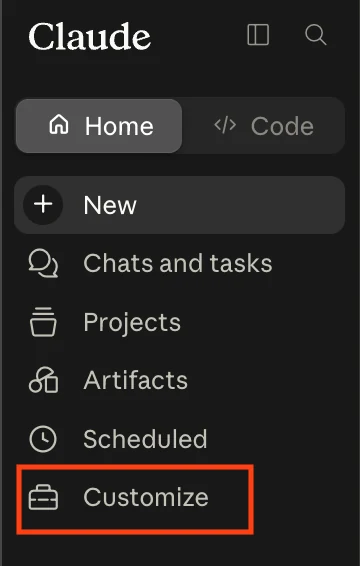
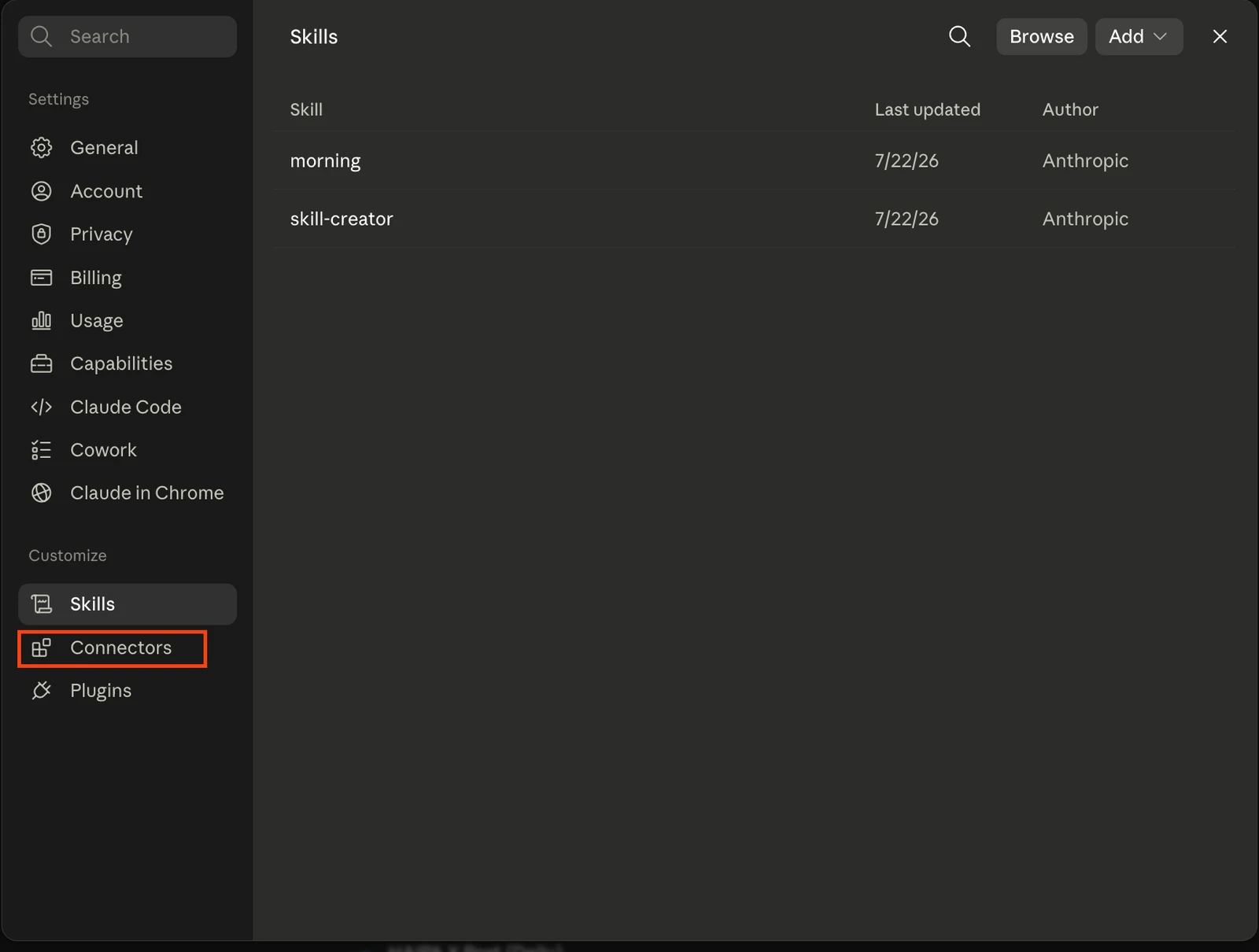
- In Claude, open the Customize menu, then Connectors.
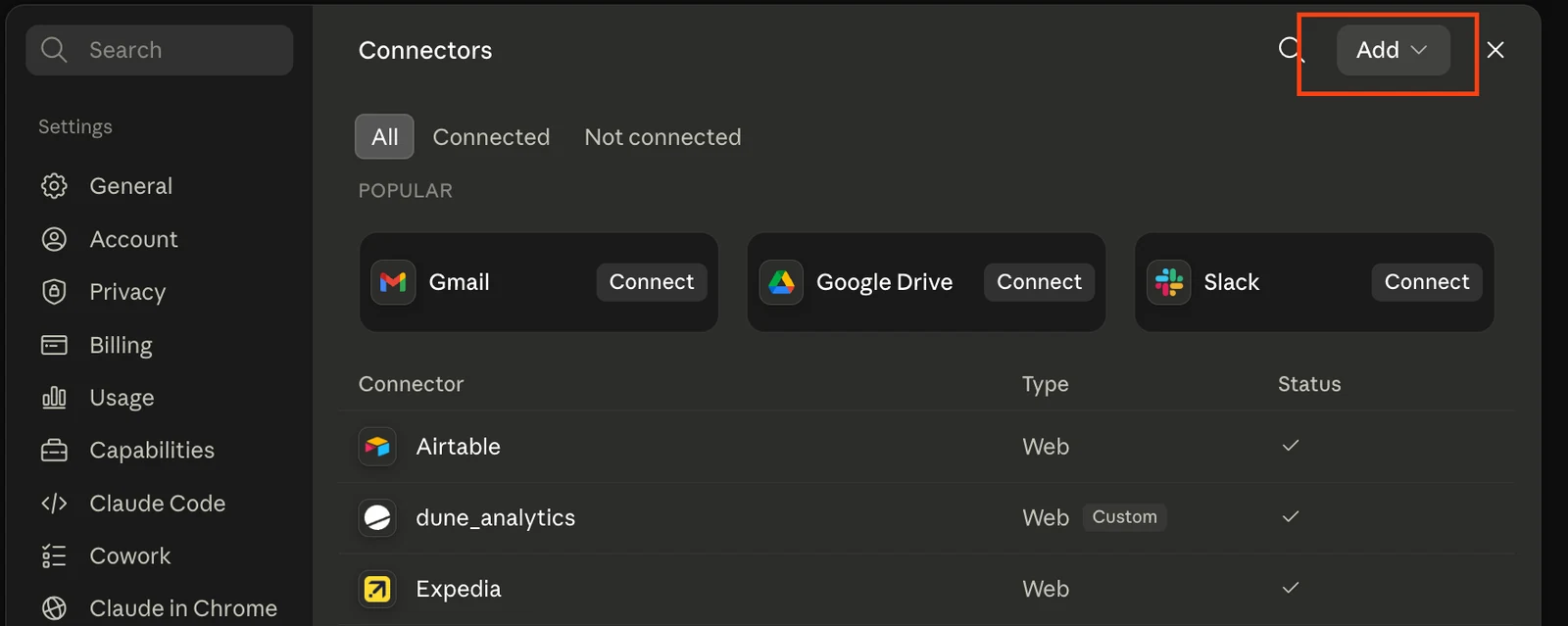
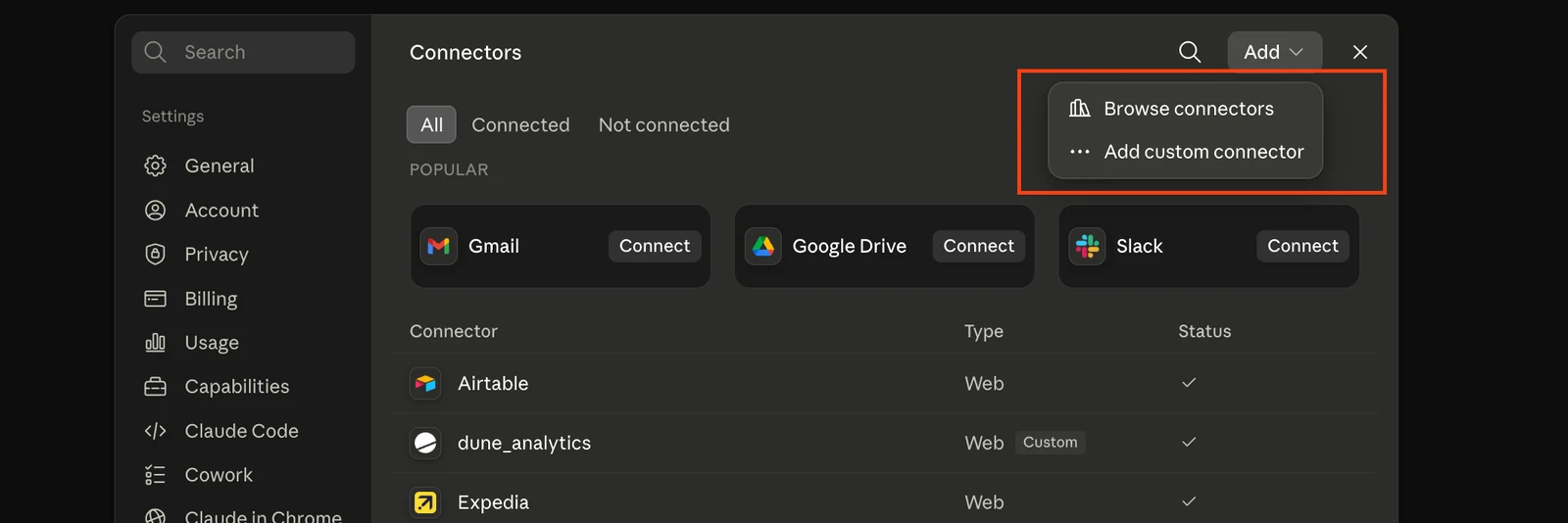
- Click Add, then select Add custom connector.
- Paste your HAIPA MCP URL as the remote MCP server URL.
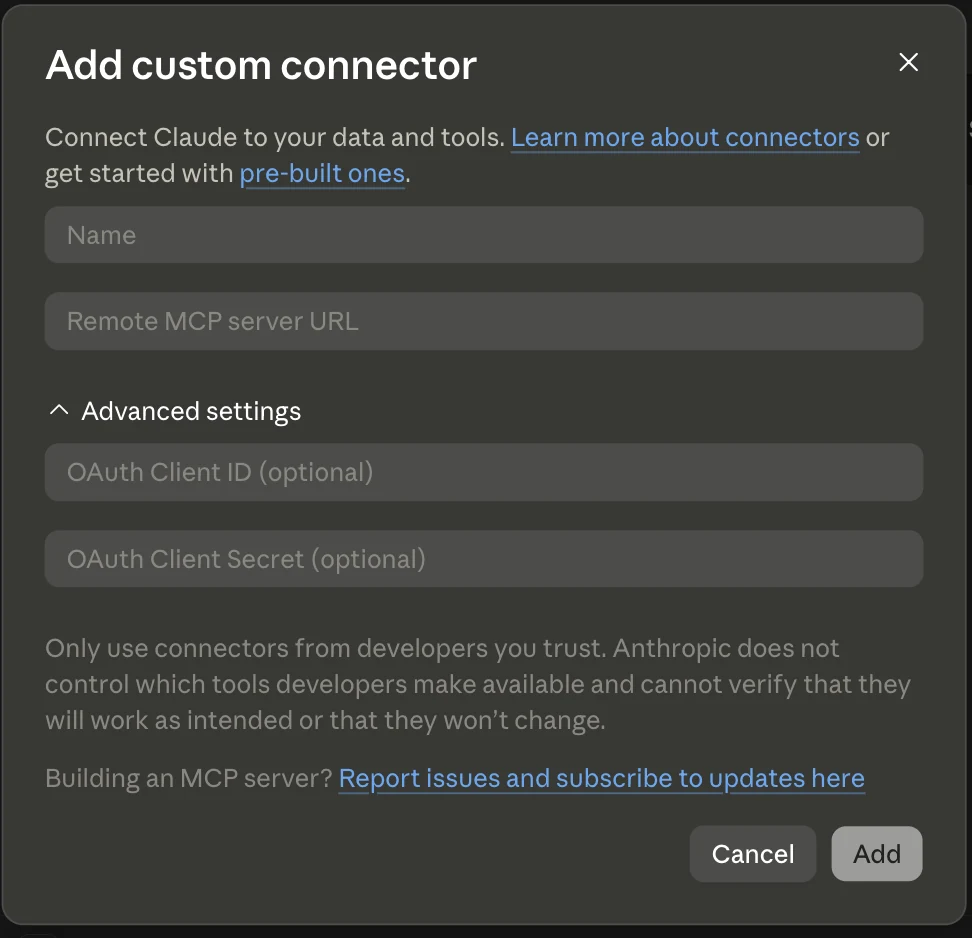
- Click Add to finish, then confirm the connection. Claude should now list HAIPA as an available tool.
- Test it with a simple request, like asking Claude to check your current positions or get your account info.
Claude only ever proposes trades. HAIPA checks every one against your policy before it's signed. If a request breaks your rules (for example, exceeding a size or leverage cap), HAIPA blocks it and Claude will typically offer a compliant alternative.
Connect ChatGPT (MCP)
Purpose: Connect ChatGPT to HAIPA over MCP so your chatbot can propose trades that are checked against your policy before they execute.
Steps
- Copy your HAIPA MCP Server URL from the Agent Rails dashboard.
- In ChatGPT, open Settings.
- Select Plugins.
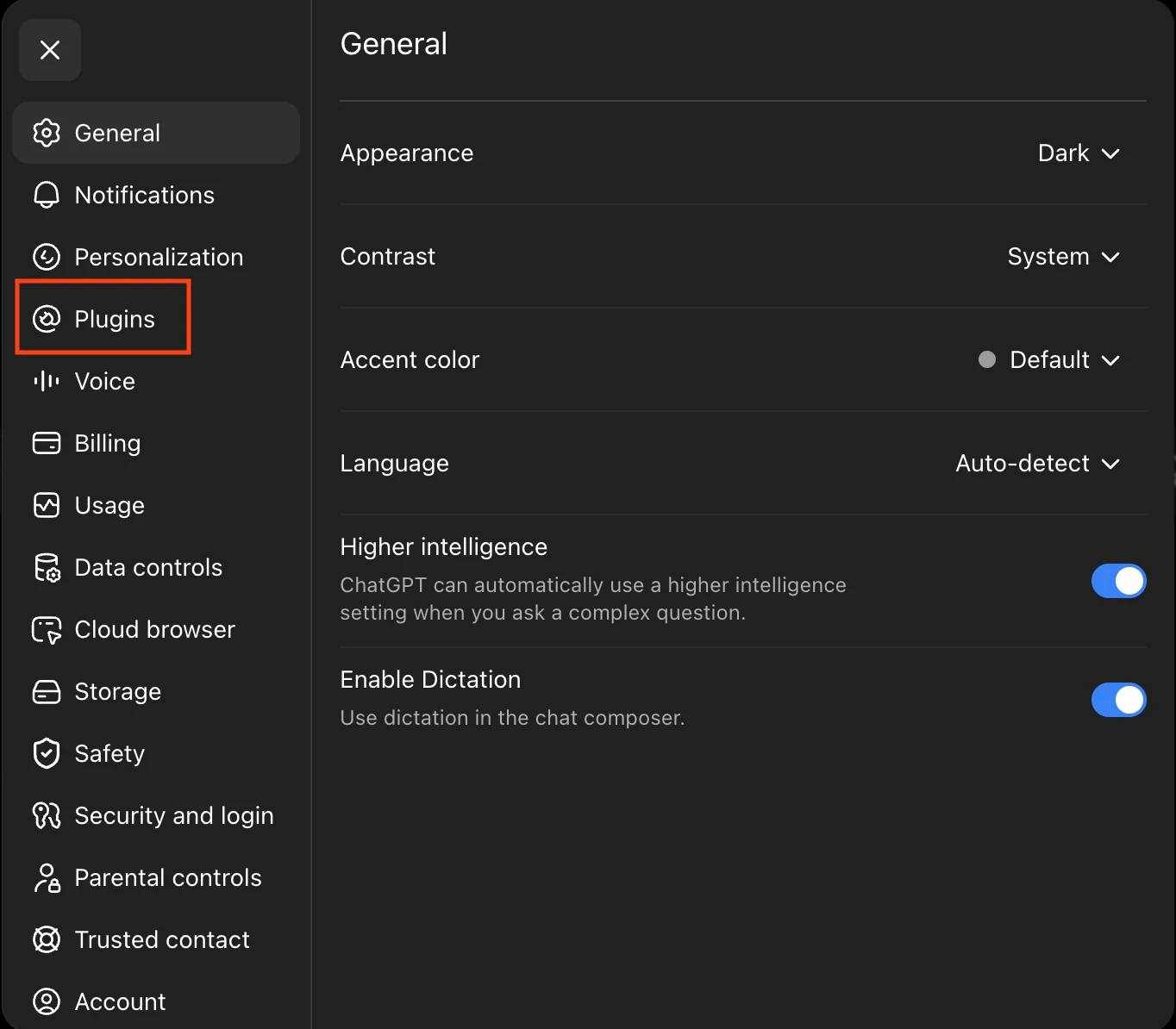
- Scroll down and click Browse plugins.
- On the Plugins page, click the + button in the upper-right corner.
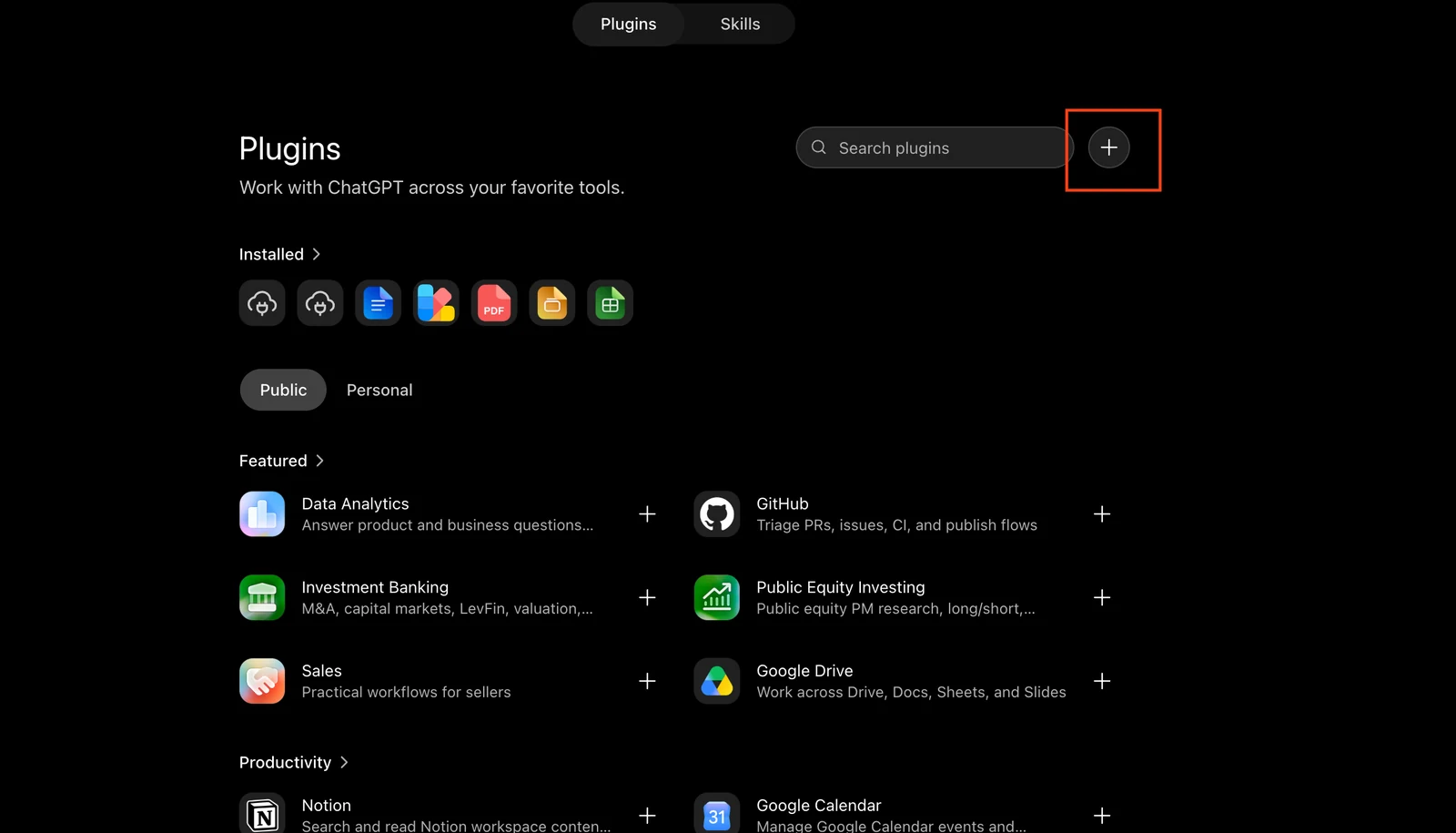
- In the New Plugin dialog, enter:
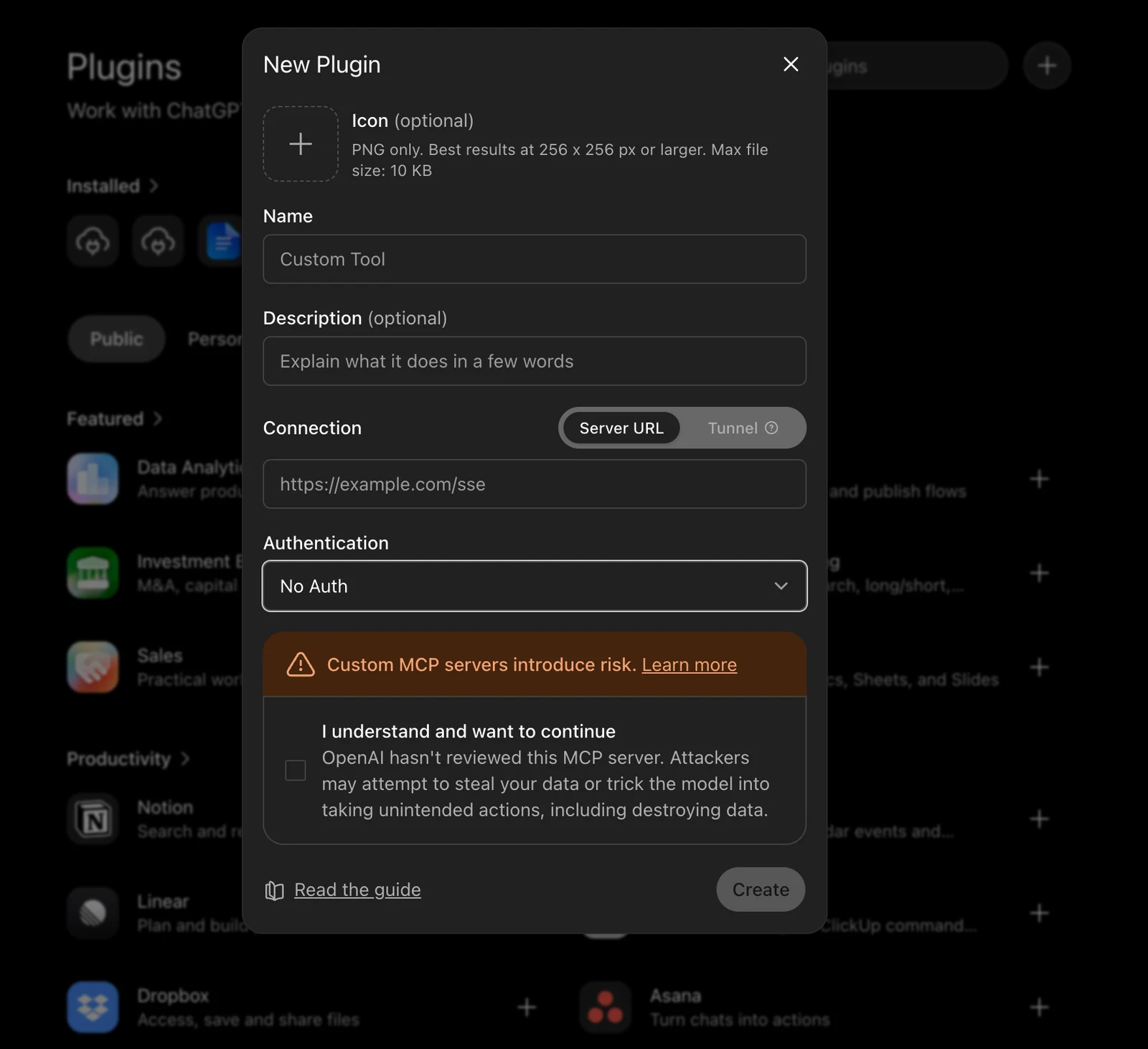
- Name: HAIPA
- Description (optional): AI trading assistant for Hyperliquid
- Connection: leave Server URL selected
- Server URL: paste your HAIPA MCP Server URL
- Authentication: select No OAuth — a HAIPA account does not require OAuth.
- Review the security warning and check "I understand and want to continue."
- Click Create.
Once connected, HAIPA appears in your installed plugins and is ready to use in ChatGPT.
As with Claude, ChatGPT never bypasses your policy. Every order it proposes is checked by HAIPA before it's signed, and HAIPA never takes custody of your funds — regardless of which chatbot you connect.